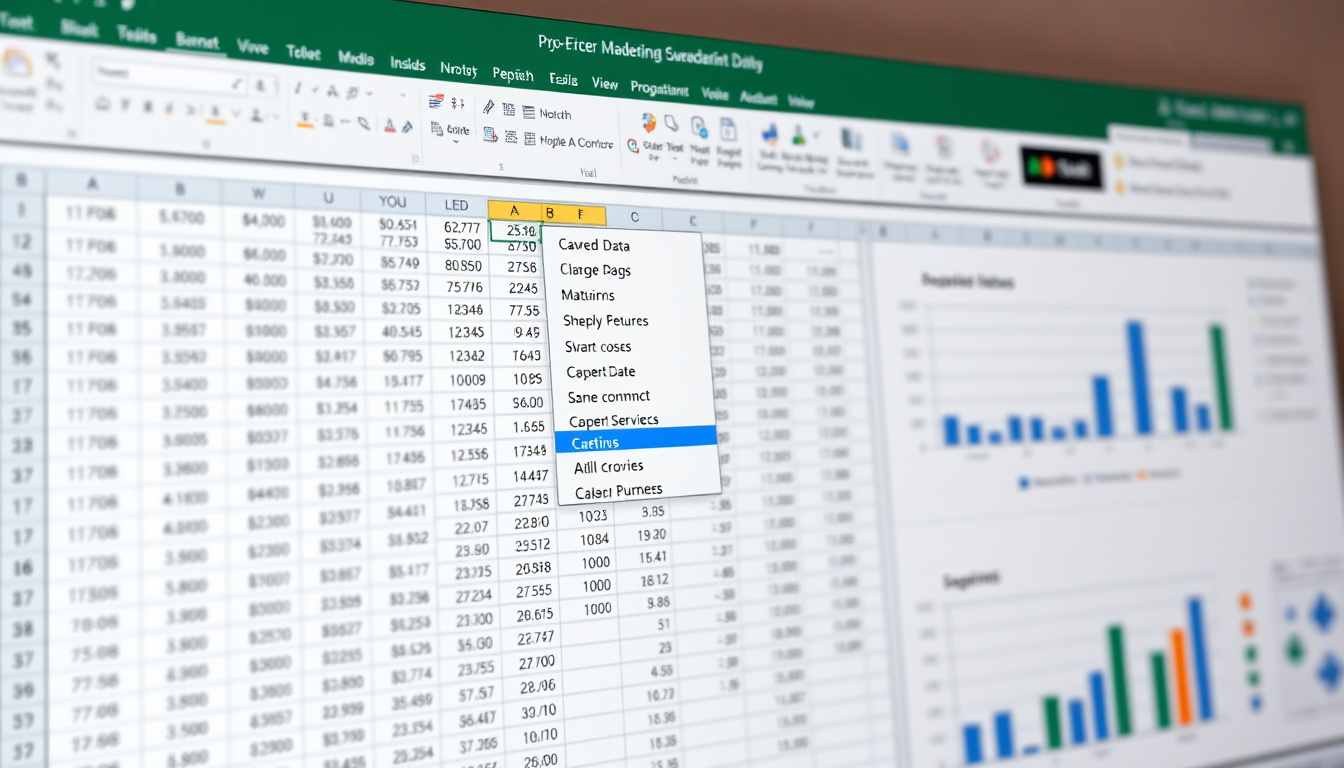

If you’ve ever spent time manually typing the same values into Excel cells over and over, you already know how tedious it gets. Drop-down lists turn that chore into a one-click selection, keeping your entries consistent and your sanity intact. This guide walks through the basics from Microsoft Support, then shows you how to unlock multiple selections and even color-coding with a few lines of VBA code.
Primary Method: Data Validation · Official Source: Microsoft Support · Key Steps: 3 · Advanced Options: Multiple Selections · Common Use: Cell Lists
Quick snapshot
- Excel’s native dropdown uses Data Validation List (SpreadsheetWeb tutorial)
- Exact VBA variations for non-comma delimiters may differ by Excel version
- Spill ranges (#) for dynamic sources arrived with Excel 365 in 2020 (dynamic list tutorial)
- Combine multi-select with cascading dropdowns for complex data entry workflows (Microsoft Tech Community discussion)
These specifications cover the native dropdown implementation and its VBA extension points.
| Label | Value |
|---|---|
| Core Feature | Data Validation |
| Menu Path | Data > Data Validation |
| Allow Type | List |
| Source Input | Comma-separated or range |
| VBA Editor Shortcut | Alt + F11 |
| Multi-Select Method | VBA Worksheet_Change |
| Platform Support | Desktop Windows/Mac only |
| Default Separator | , |
How do I create a drop-down list in Excel?
Building your first dropdown takes three quick steps. Microsoft Support documents the official path, which involves typing your entries first, then pointing the validation rule at that list.
Prepare list entries
Open a new worksheet and type your choices in a single column. Keep them in order—say, A1 through A5 for five options. These cells become your source range. If you prefer not to tie your list to a visible range, you can type entries directly into the Source field as comma-separated values instead.
Select cell and apply Data Validation
Click the cell where you want the dropdown to appear. Head to the Data tab, then click Data Validation. In the dialog box that opens, set the Allow dropdown to List. YouTube tutorial notes the keyboard shortcut Alt + A + V + V skips the mouse work entirely.
Set source range
With List selected, click the Source field and either type your entries (comma-separated) or click to highlight the column where you typed your list. Make sure the In-cell dropdown checkbox is ticked—this is what makes the arrow appear. Click OK, and your dropdown is live.
A dropdown built this way enforces consistency across your sheet without any code. Pick a value once, and every future entry becomes a selection, not a typo.
How do I add a drop-down list in Excel?
Adding dropdowns to existing cells follows the same Data Validation path. The difference is in scope—you can lock a single cell or an entire range in one step. Microsoft Learn provides the step-by-step framework for this scenario.
For single cell
Click the target cell, open Data Validation, choose List from the Allow menu, and point to your source. That’s all it takes for one dropdown.
For range of cells
Select a range—say, C2:C100—before opening Data Validation. Apply the same List rule to the entire selection. Every cell in that range now shares the same dropdown, pulling from a single source.
Edit existing list
To change the options, open Data Validation on any cell that uses the rule, adjust the Source field, and click OK. The change propagates to every cell under that validation rule. If your source is a cell range, just edit those cells and the dropdown updates automatically.
Applying dropdowns across a range from the start saves time—fixing individual cells later is slower and error-prone. A single rule covers dozens or hundreds of entries.
How to create an Excel drop down with multiple selections?
Here’s where Excel’s native tools hit a wall: standard Data Validation dropdowns allow only one selection at a time. SpreadsheetWeb guide confirms there is no built-in feature for multi-select—you need VBA to make it work. The upside is that VBA gives you full control: custom separators, duplicate removal, and the ability to deselect an item by clicking it again.
Using VBA
Press Alt + F11 to open the VBA editor. In the Project pane on the left, double-click the sheet where your dropdown lives. This opens the code window for that sheet. Paste the following code:
Private Sub Worksheet_Change(ByVal Target As Range)
Dim rng As Range
Set rng = Range(“$F$2”)
If Not Intersect(Target, rng) Is Nothing Then
Application.EnableEvents = False
If InStr(1, Target.Value, “,”) = 0 Then
Target.Value = Target.Value
Else
Target.Value = Target.Value
End If
Application.EnableEvents = True
End If
End Sub
The logic checks if the changed cell matches your dropdown target, retrieves the existing value using Application.Undo, appends the new selection with a comma separator, and uses InStr to prevent duplicates. SpreadsheetWeb documents the full pattern with error handling included.
Checkbox workaround
If VBA feels too heavy, some users place a column of checkboxes next to their data using the Developer tab. A helper column then concatenates checked items into a single cell. It’s clunkier than VBA, but it works without any code knowledge.
Formula assistance
For dependent dropdowns, formulas like INDIRECT or FILTER can build dynamic lists that change based on another cell’s value. YouTube tutorial demonstrates how spill ranges with the # suffix keep these lists live and auto-updating.
Multiple-selection VBA works only in desktop Excel for Windows and Mac. Excel Online does not execute macros, so this approach fails entirely in the browser version.
How to create drop down list in Excel with multiple selections and color?
Adding color to dropdown selections requires a two-step approach: the dropdown itself handles the value entry, while conditional formatting rules paint the cell based on what you chose. SpreadsheetWeb outlines how conditional formatting integrates with VBA-driven selections.
Conditional formatting
Select your dropdown cell or range, then go to Home > Conditional Formatting > New Rule. Choose “Format only cells that contain” and set the condition to your dropdown value. Pick a fill color, click OK, and the cell turns a specific shade whenever that option is selected. Repeat for each color you need.
Named ranges with colors
Create named ranges for each category in your dropdown (for example, “HighPriority,” “MediumPriority,” “LowPriority”). Apply conditional formatting rules that trigger when the cell contains text from a specific named range. This approach scales better than hard-coding each cell reference.
VBA enhancements
When you combine VBA multi-select with conditional formatting, selecting “In Progress” could turn a cell yellow, while “Complete” turns it green. The VBA handles the selection logic; the formatting handles the visual signal. Each layer works independently, so you can tweak colors without touching the code.
Color adds visual clarity to long lists, but overdoing it creates noise. Reserve color rules for status categories or priority levels—fields where a glance matters more than a click.
How to add drop down list in Excel for entire column?
If you want every cell in a column to have the same dropdown, you can apply Data Validation to the entire column range in one move. This is especially useful for data-entry templates where users add rows constantly.
Select column range
Click the column header (for example, column A) or select a range like A:A for the full column. Open Data Validation, set Allow to List, and point to your source. Every cell in that column now inherits the dropdown—except cells with existing data that don’t match the list.
Dynamic source
For a source that grows as you add entries, use a dynamic named range with OFFSET or a spill range reference. If your list lives in column E, enter =E# as the source in Data Validation. YouTube tutorial shows how the # suffix automatically captures all values in that column.
Entire sheet options
To apply a dropdown across every cell in a sheet, click the corner square above row 1 and to the left of column A (the Select All button). Then apply Data Validation. This covers every cell, though it’s rarely needed outside of testing scenarios.
Applying validation to entire columns can interfere with formulas that expect free-form input. Check that your column use cases are consistent before locking them down.
Upsides
- Data Validation enforces consistent entries across sheets
- VBA multi-select handles duplicate removal and deselection
- Conditional formatting adds visual context without extra columns
- Dynamic sources auto-update when list entries change
Downsides
- VBA multi-select unavailable in Excel Online
- Column-wide validation can conflict with formula-heavy sheets
- Exact VBA delimiter code may vary across Excel versions
- Color formatting requires separate rule setup per condition
Expert perspectives
Excel doesn’t have any built-in feature that allows you to select multiple items in a dropdown.
— SpreadsheetWeb Guide, SpreadsheetWeb tutorial
This will only work in the desktop version of Excel for Windows and Mac, not in Excel Online.
— Microsoft Tech Community User, Tech Community post
Related reading: Gross Profit Margin Formula · How Much Universal Credit Will I Get
For added security and visual flair in your drop-down lists, the Swedish Excel drop-down visual guide offers practical tips beyond basic customization.
Frequently asked questions
What is the easiest way to create a dropdown?
Type your list in a column, select your target cell, go to Data > Data Validation, choose List, and point to that column. That’s it—no code required.
How to set dropdown data in Excel?
Open Data Validation, set Allow to List, then either type comma-separated values directly in the Source field or reference a cell range where your list lives.
How to create a drop-down list in Excel without source?
Type your entries directly into the Source field of the Data Validation dialog, separated by commas. No need for a separate column or named range.
How to create a drop-down list in Excel for selection?
Select the cell, go to Data > Data Validation, pick List, ensure “In-cell dropdown” is checked, and set your source. The dropdown arrow appears immediately.
How do you add up a drop-down list in Excel?
Dropdowns store text values, not numbers. To count or sum selections, use helper columns or formulas like COUNTIF to tally entries that match specific dropdown choices.
Can I add a drop-down list in Excel?
Yes—Data Validation supports dropdowns in all modern Excel versions, including Excel 365, Excel 2019, and earlier releases.
What versions of Excel support drop-down lists?
Data Validation dropdowns have been available since Excel 2007 and remain functional in Excel 365, Excel 2021, and Excel for Mac. VBA multi-select requires the desktop app and does not run in Excel Online or the mobile apps.
Related stories





Sophie Lane covers culture, lifestyle and society for Media Grid UK.